How to Convert HEIC and WebP to JPG for Free
To convert HEIC or WebP to JPG, open Convert images, add your photos, choose JPG as the format and click Convert images. You get JPG files that open everywhere, from Windows and old phones to administration websites. WebP, AVIF and PNG are converted in your browser without uploading anything; HEIC photos are decoded by our server in memory and not kept (Safari reads them itself). You can convert up to 30 at once.
How to convert images, step by step
- Add your photos. HEIC and HEIF (iPhone), WebP, AVIF, PNG, GIF and JPG are accepted.
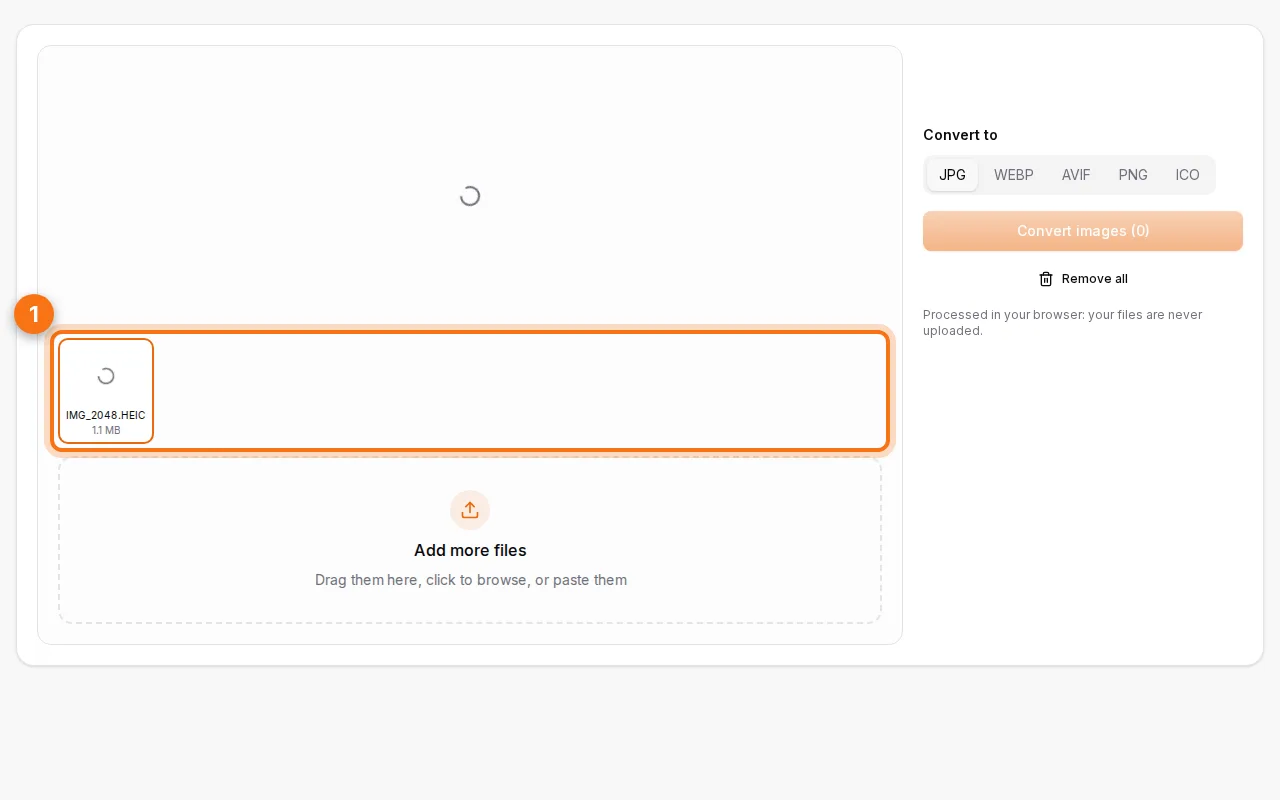
- Choose the output format. JPG for compatibility, PNG to keep transparency, WebP or AVIF for the smallest files, ICO for a website favicon.
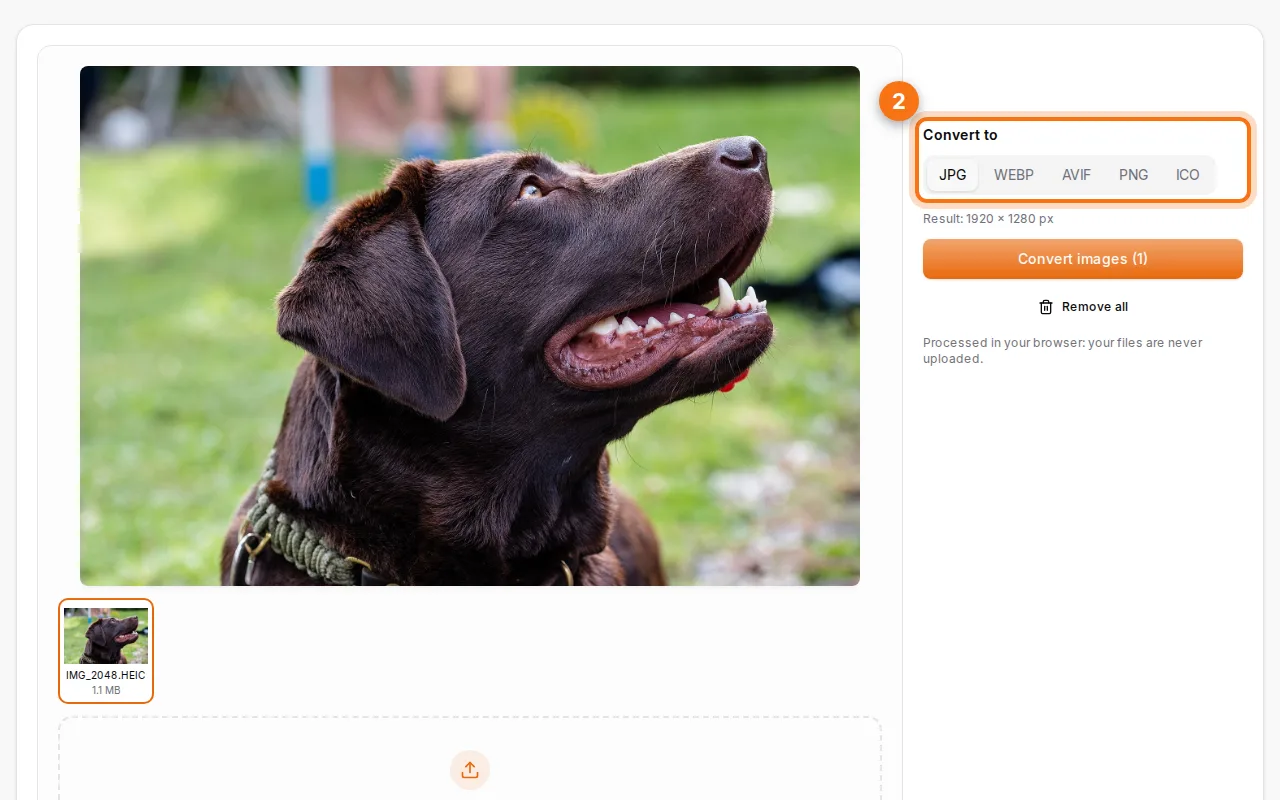
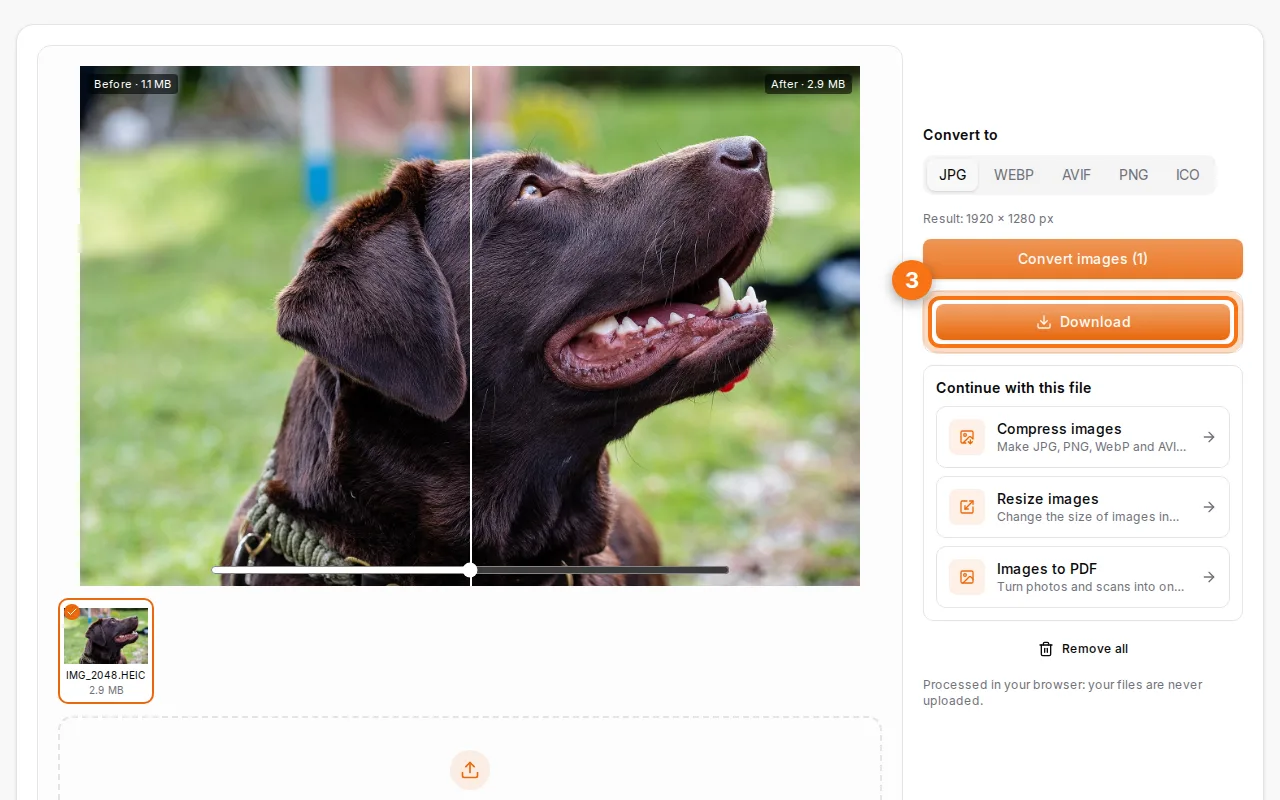
- Convert and download. Download each image, or all of them in a ZIP.
What is HEIC, and why convert it?
HEIC (High Efficiency Image Container) is the format iPhones use by default since iOS 11. It keeps the same quality as JPG in about half the space, which is great on the phone, but many places still can't open it: older Windows PCs, some Android apps, online forms, print shops and administration portals. Converting to JPG solves all of these at once.
If you send photos from an iPhone often, you can also set the camera to "Most Compatible" (Settings → Camera → Formats) so new photos are taken as JPG.
And WebP?
WebP is the format many websites serve to save bandwidth. When you save a picture from a site, you often get a .webp file that your photo editor, printer or social app refuses. Convert it to JPG (or PNG if it has a transparent background).
Which format should I choose?
| Format | Use it for | Transparency |
|---|---|---|
| JPG | Photos to share, print or upload anywhere | No (transparent areas become white) |
| PNG | Screenshots, logos, images with transparency | Yes |
| WebP | Websites, smaller photos | Yes |
| AVIF | The smallest files, recent browsers | Yes |
| ICO | Website favicons (16 to 256 px, square) | Yes |
Keep the quality
Converting from HEIC to JPG re-encodes the photo once. At the default quality the difference is invisible. If you're converting to reduce the size, see how to compress an image without losing quality, and to change the dimensions use Resize images.
Private by design
Online converters usually upload and keep your pictures on a server. Here, the conversion itself happens in your browser. Only HEIC photos make a short trip to our server when your browser can't read them (Chrome, Firefox and Edge can't; Safari can): they are decoded in memory and never stored.
FAQ
Can I convert many photos at once?
Yes, up to 30 images per batch, downloaded one by one or in a ZIP.
Does converting remove the location from my photos?
The converted copy doesn't carry the original camera details. To check or remove them on purpose, use Remove photo metadata.
Can I convert JPG to PDF instead?
Yes: Images to PDF puts one or many photos into a single PDF.
Does it work on an iPhone?
Yes, in Safari. Pick the photos from your library and download the JPGs to Files or Photos.