How to Compress an Image Without Losing Quality
To compress an image without losing quality, open Compress images, add your photos, keep the Recommended level and click Compress images. Most photos come out 40 to 70% smaller with no difference you can see. The compression happens in your browser, so your pictures aren't uploaded (only iPhone HEIC photos are first decoded by our server, in memory), and you can do up to 30 at once.
Below: the steps, how to choose the level and the format, and what "without losing quality" really means.
How to compress images, step by step
- Add your images. JPG, PNG, WebP, AVIF, HEIC and GIF are accepted, up to 30 at a time. Drag them onto the page, choose them, or paste a screenshot.
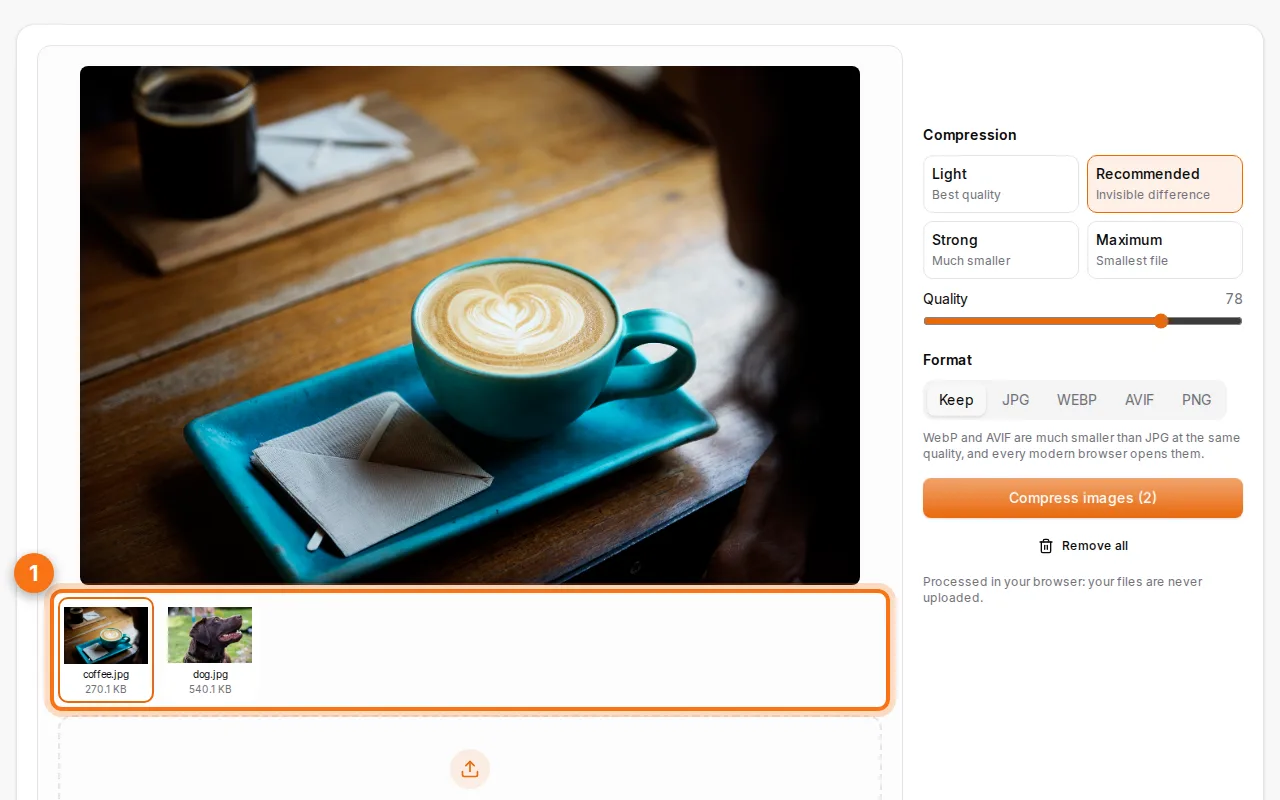
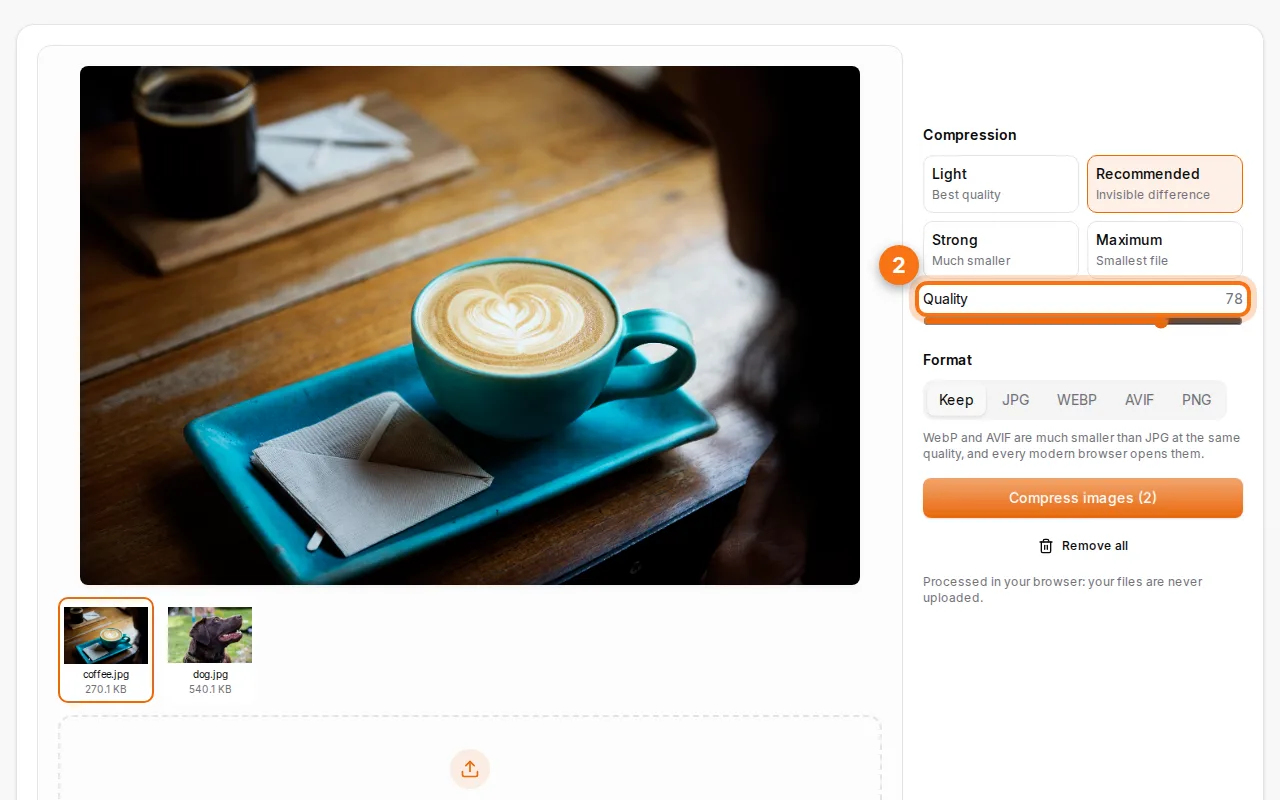
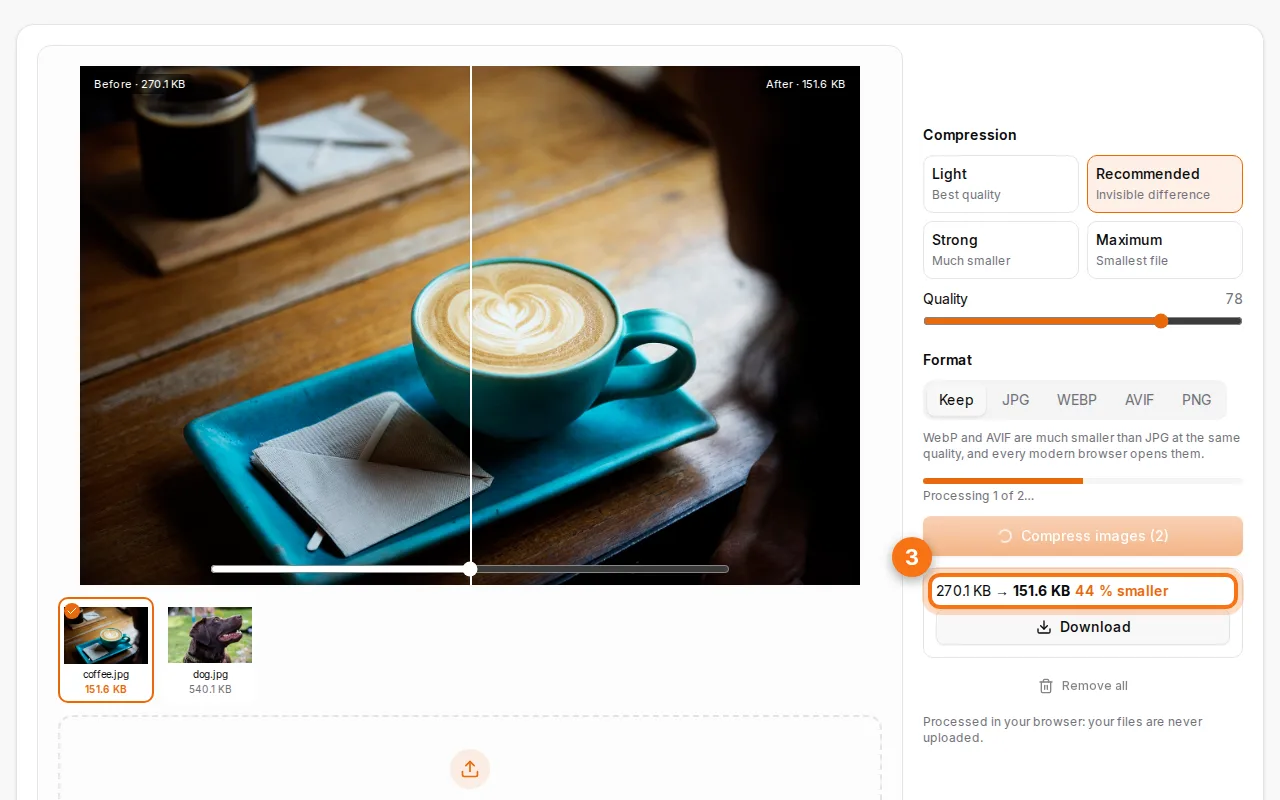
- Pick the compression level. Light keeps the best quality, Recommended gives an invisible difference, Strong makes much smaller files, and Maximum makes the smallest. You can fine-tune the quality slider and change the format.
- Compress and download. Each image shows its size before and after and the percentage saved. Download them one by one or all together in a ZIP.
What does "without losing quality" mean?
JPG and WebP are lossy formats: every save throws away some detail. The trick is to throw away only what the eye doesn't notice. Phone cameras save photos at very high quality (often 95 or more), which makes files huge for little visible benefit. Bringing the quality down to about 75–80 removes most of the weight while the photo looks the same on a screen.
Use the Before / After slider in the tool to compare at full size. If you can't tell them apart, the compression is "lossless" for all practical purposes.
Which level should I choose?
| Level | Typical saving | Best for |
|---|---|---|
| Light | 20–40% | Photos you'll print or edit again |
| Recommended | 40–70% | Websites, email, WhatsApp, documents |
| Strong | 60–80% | Many photos to send quickly |
| Maximum | 80%+ | Thumbnails, previews, very slow connections |
Which format is the smallest?
- WebP is about 25–35% smaller than JPG at the same quality, and every modern browser and phone opens it. A good choice for websites.
- AVIF is smaller still, but slower to encode and not yet accepted everywhere (some forms and older apps refuse it).
- JPG is the safest when you don't know where the photo will go.
- PNG is for screenshots, logos and pictures with transparency. For photos, PNG files are very large: convert them to JPG or WebP with Convert images.
"Keep" leaves each image in its own format.
Make it smaller by resizing too
A 12-megapixel photo is 4,000 pixels wide, far more than a screen shows. If the picture is for a website, a message or a document, resize it to 1,600–2,000 pixels first: the file often shrinks by another half.
Compress photos for a specific use
- Email: Recommended, then attach. For many photos, make a PDF with Images to PDF.
- Website: WebP at Recommended, resized to the width it's displayed at.
- Forms with a size limit (job applications, administrations): Strong or Maximum, and check the size shown under each image.
- Social media: they recompress everything, so start from a good-quality file (Light or Recommended).
Private by design
Most online compressors upload your photos to their server. Fildok compresses them in your browser with the same encoders the big tools use, so your pictures stay on your device (HEIC photos from an iPhone are the one exception: they're decoded on our server in memory when your browser can't read them). That also makes it fast: no upload, no waiting in line.
Compressing also rewrites the file, so camera details are left out of the copy. If you want to be sure a photo carries no GPS location, see how to remove EXIF and GPS data.
FAQ
Is there a limit?
Up to 30 images at a time, as often as you like. There's no daily limit, because the work is done by your own device.
Does it work on iPhone photos (HEIC)?
Yes. HEIC photos are read and can be saved as JPG, WebP or AVIF.
Will my photos look blurry?
Not at Light or Recommended. At Maximum, fine textures can soften: use the Before / After slider to check.
Can I compress a PDF the same way?
PDFs have their own tool: Compress PDF shrinks the images inside it.