Free QR Code Generator With Logo: Step-by-Step Guide
To make a QR code with your logo for free, open the Fildok QR code generator, choose what the code should open (a link, Wi-Fi, a contact card, WhatsApp, a location…), fill in the details, add your logo and colours, then click Create QR code and download it as PNG, SVG or PDF. There's no sign-up, no watermark on the code, and codes don't expire.
This guide walks through each step, then explains how to design a code that always scans, and why a "dynamic" code saves you from reprinting.
How to create a QR code, step by step
- Choose what the code opens. Link, text, Wi-Fi, contact (vCard), WhatsApp, email, SMS, phone call or map location. For a page with all your social profiles, see the bio page and social QR guide.
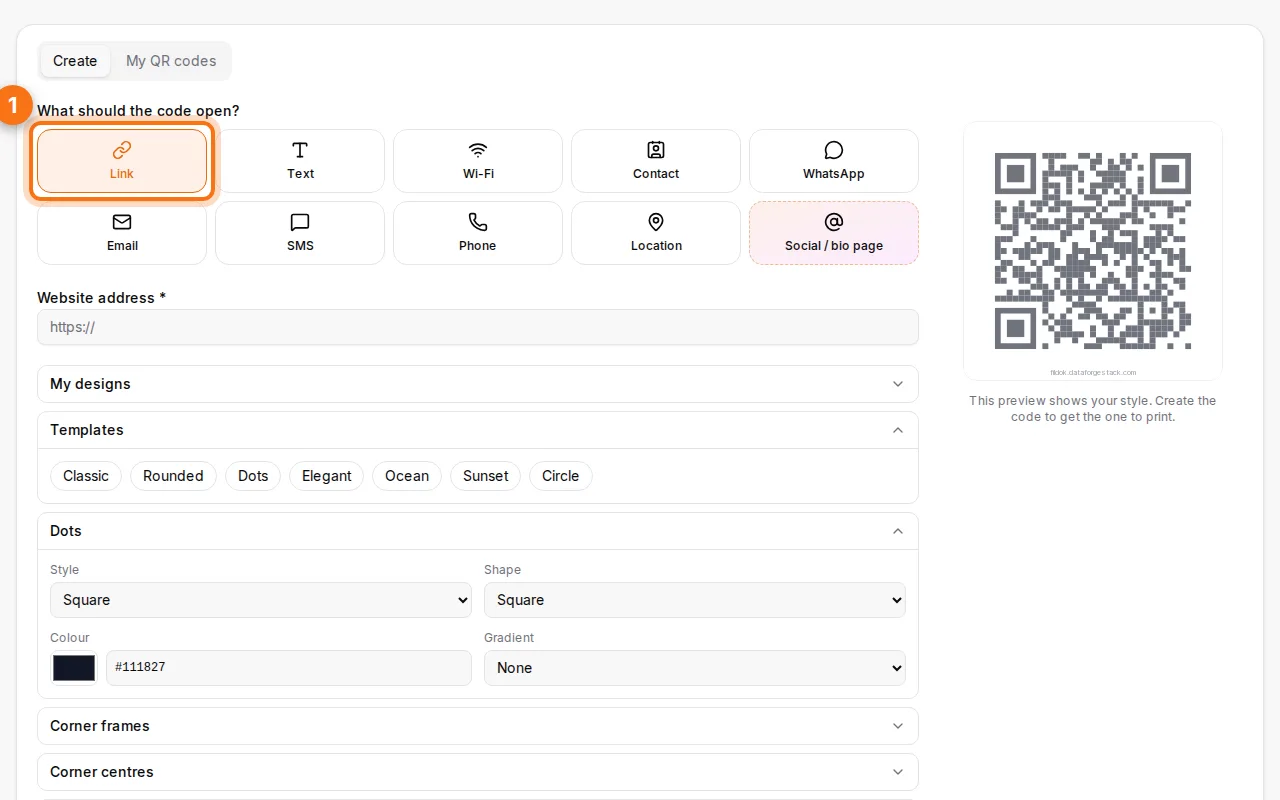
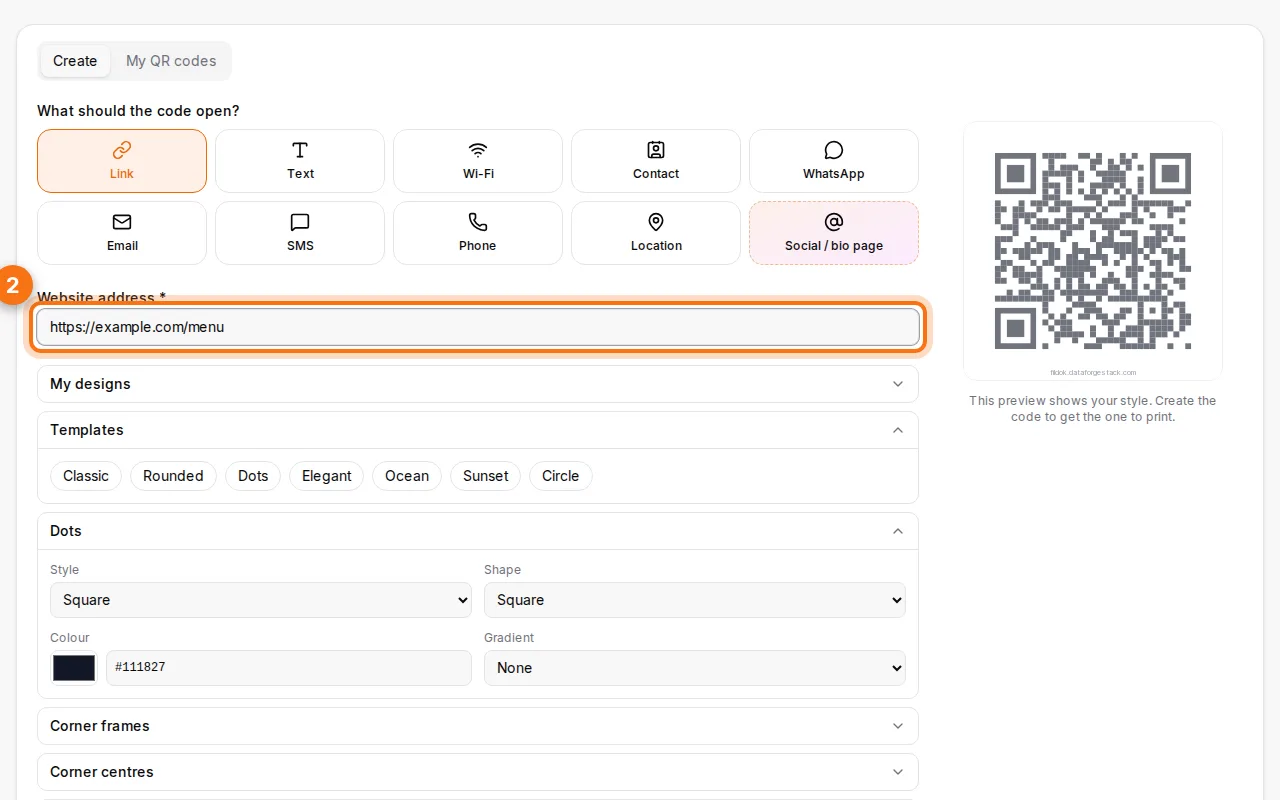
- Fill in the details. For a link, paste the web address. For Wi-Fi, the network name and password. For WhatsApp, the phone number and an optional first message.
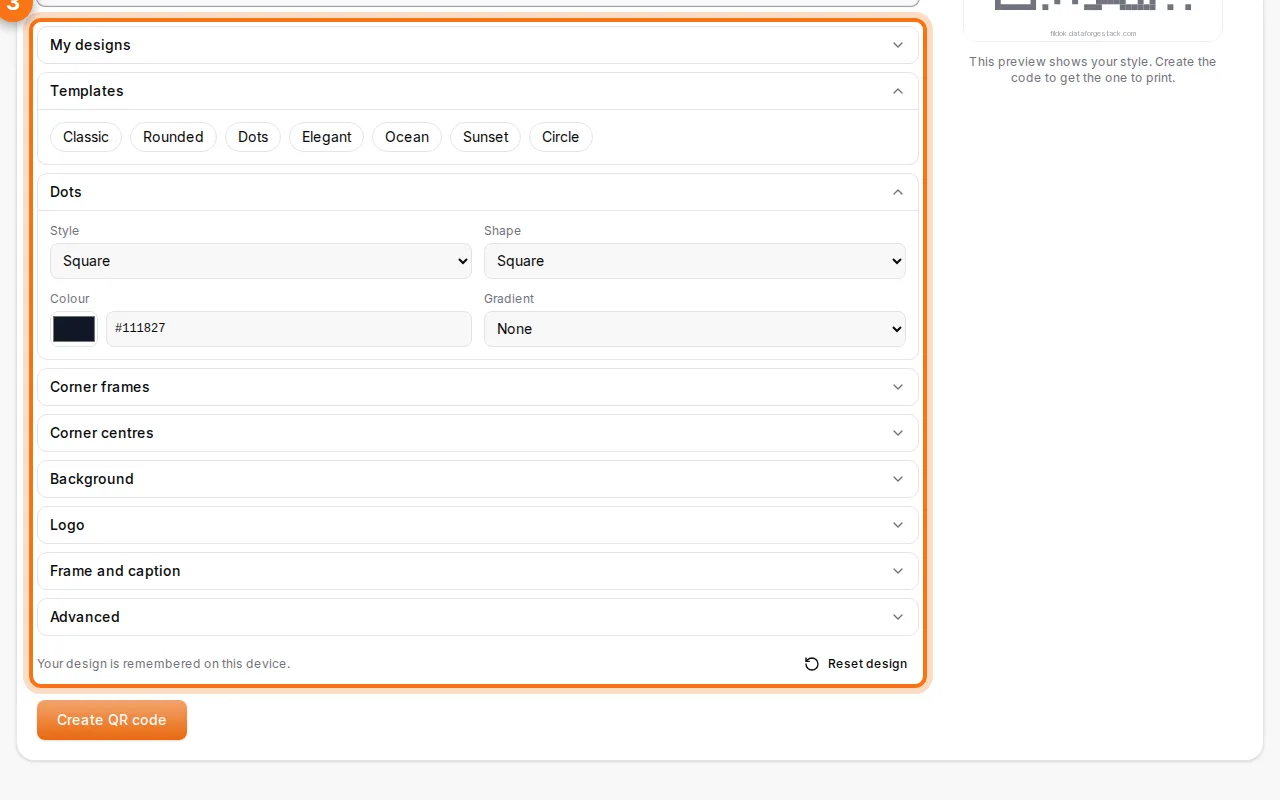
- Style it. Start from a template, then change the dot and corner shapes, the colours or gradient, add your logo in the middle and a frame with a caption such as "Scan me". The preview updates live, and a warning appears if the colours won't scan well.
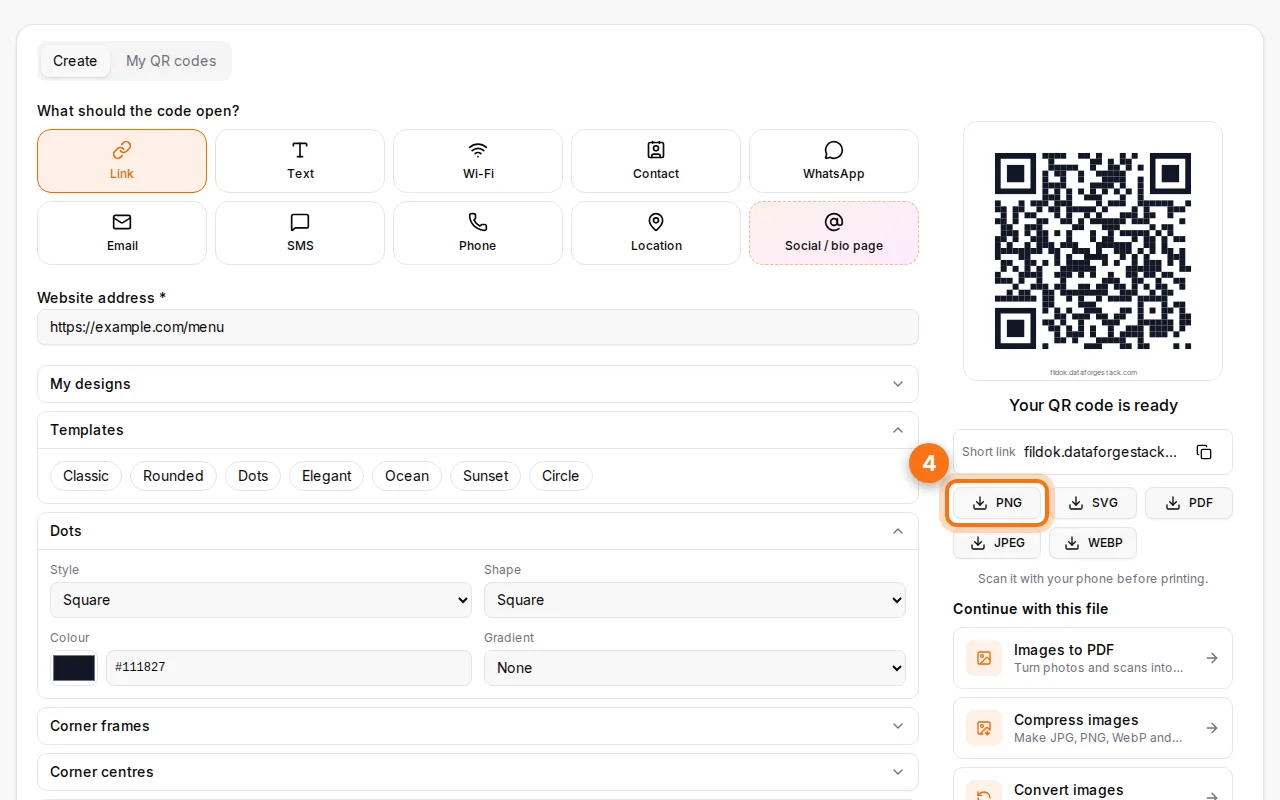
- Create and download. Click Create QR code, then download PNG for screens, SVG or PDF for print shops, JPEG or WebP. Scan it with your phone before printing.
Design a QR code that always scans
- Keep strong contrast: dark dots on a light background. Light dots on a dark background (inverted) fail on many phones.
- Logo size: up to about 30% of the code. The generator raises the error correction when you add a logo, so the code survives the missing dots.
- Leave a quiet zone: the empty margin around the code matters. Don't crop it.
- Print big enough: at least 2 × 2 cm for a card at arm's length, and bigger for posters read from far away (a rule of thumb: distance ÷ 10).
- Test on two different phones before printing hundreds.
Static vs dynamic QR codes
A static code holds the destination itself: change the link and you have to reprint. Fildok codes (all types except Wi-Fi) hold a short Fildok link that forwards to your destination. With a free account you can:
- change the destination after printing, and the printed code keeps working;
- see scan statistics: scans per day and phone vs computer;
- turn a code off and on again.
Wi-Fi codes are the exception: they carry the network details so phones can join directly.
Safe by default
Short-link services are a favourite of scammers, so every destination is checked against known malware and phishing sites, and link shorteners and look-alike addresses are refused. Anyone scanning a code can report it. This keeps your codes, and the people who scan them, safe.
Ideas for using QR codes
- Restaurant menus on each table (link to your menu PDF).
- Wi-Fi for guests in a café, office or rental flat.
- Business cards with a contact card code: one scan saves your details.
- WhatsApp orders for a shop, with a ready-made first message.
- Shop windows and flyers leading to your bio page with every social network.
- Invoices and quotes: add a payment or website link to your invoices.
Put the code on a document
Download the PNG and insert it in Word or in the online Word editor, or turn it into a printable PDF page with Images to PDF.
FAQ
Do the QR codes expire?
No. Printed codes keep working. A code is only switched off if it leads to a dangerous site or is reported as abusive.
Is it free without an account?
Yes. Guests can create codes freely; guest codes carry a small Fildok address under the code. With a free account, codes have no credit and you get editing and statistics.
Which format is best for printing?
SVG or PDF: they stay sharp at any size. PNG at 2048 or 4096 pixels also prints well.
Can I track how many people scanned my code?
Yes, with a free account: "My QR codes" shows scans per day and the phone/computer split.