How to Add Text, Images and Shapes to a PDF for Free
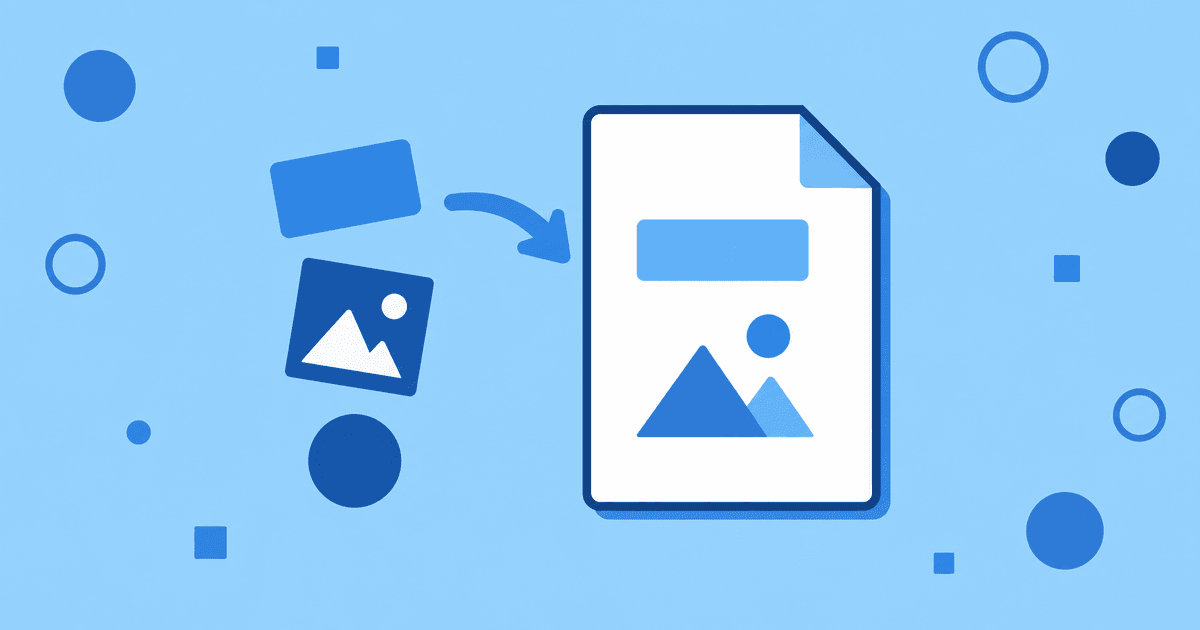
To add text, images or shapes to a PDF for free, open it in the free PDF editor (no sign-up) and use the Text Box, Image or Shape tool from the toolbar. Click where you want it on the page, and it becomes part of the document once you save — this works on a scanned page just as well as a native PDF.
It's the fastest way to fill in a form that isn't interactive, add a stamp or logo, or annotate a document before sending it on.
Adding a text box
-
Open the free PDF editor and choose your PDF (no account needed).
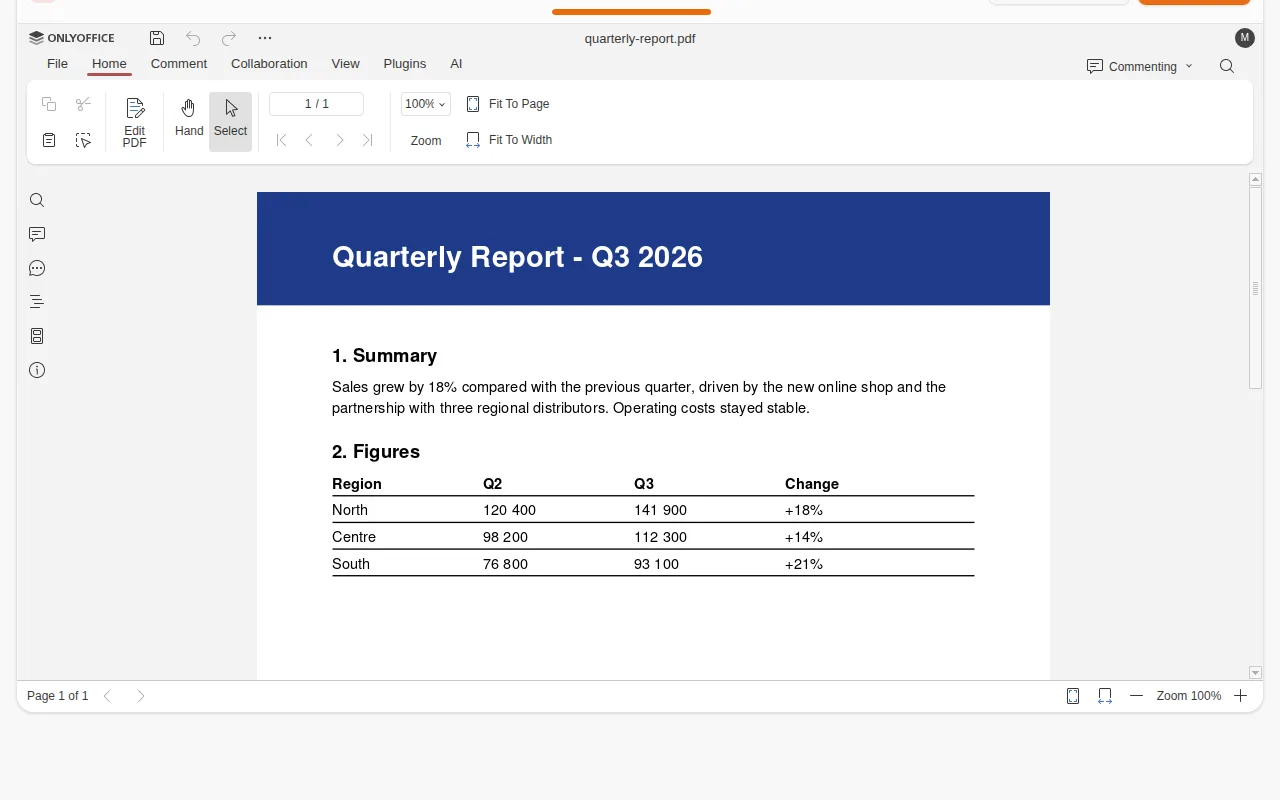
The PDF open in the editor -
Select the Text Box tool.
-
Click on the page where you want the text, and type.
-
Drag to reposition, or use the resize handles to adjust the box.
This is the common way to fill in a blank on a scanned form — a printed line for a name, a date, a signature — where there's no interactive field underneath.
Adding an image
Select the Image tool, choose the file to insert (a logo, a scanned stamp, a photo), and it drops onto the page. Drag to move it, and use the corner handles to resize while keeping its proportions.
Adding a shape
Select the Shape tool to draw lines, arrows, rectangles and other simple shapes. Useful for circling a figure, drawing an arrow to a specific clause, or boxing off a section you want someone to notice.
A worked example: filling in a scanned form
- Open the scanned PDF in the PDF editor.
- For each blank line, add a Text Box positioned over it and type the answer.
- If the form needs a signature, either add an Image of your signature, or use a Text Box to type your name over the signature line.
- Save the file when every field is filled in.
If the PDF has real interactive form fields instead of printed lines, use the Forms tool instead — see how to fill out and sign a PDF form.
Frequently asked questions
Can I edit the text I just added?
Yes — click back into any text box you've placed to change the wording, as long as you haven't saved and closed a redaction over it.
Does this change the original scan underneath?
No, the scan itself is unchanged — text boxes, images and shapes sit on top of the page as an added layer.
Can I undo a shape or text box I placed by mistake?
Yes, within the editing session, the same way you'd undo any other action. Save only once you're happy with the result.
Is there a size limit?
Files can be up to 50 MB. Without an account an editing session lasts up to an hour, so download your PDF before it ends; with a free account it's saved in your file space.
Keep going
For the editor's other tools (pages, forms, redaction), see the full guide to editing a PDF online.