How to Convert a PDF to Word for Free (Editable DOCX)
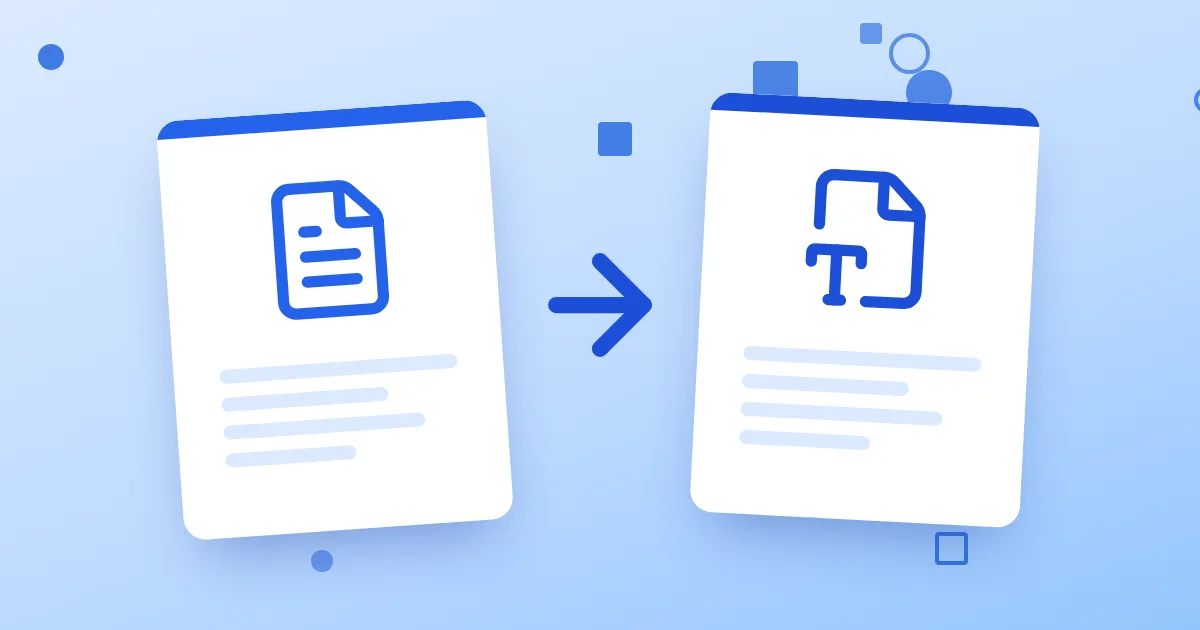
To convert a PDF to Word for free, open PDF to Word, add your PDF and click Convert to Word. A few seconds later you download an editable .docx with the text, tables and images in place. No sign-up is needed, and the file is deleted from our server after an hour. You can also open the result directly in the online Word editor to change it without installing anything.
This guide covers the steps, how to get the best result, and what to do when the PDF is a scan.
How to convert a PDF to Word, step by step
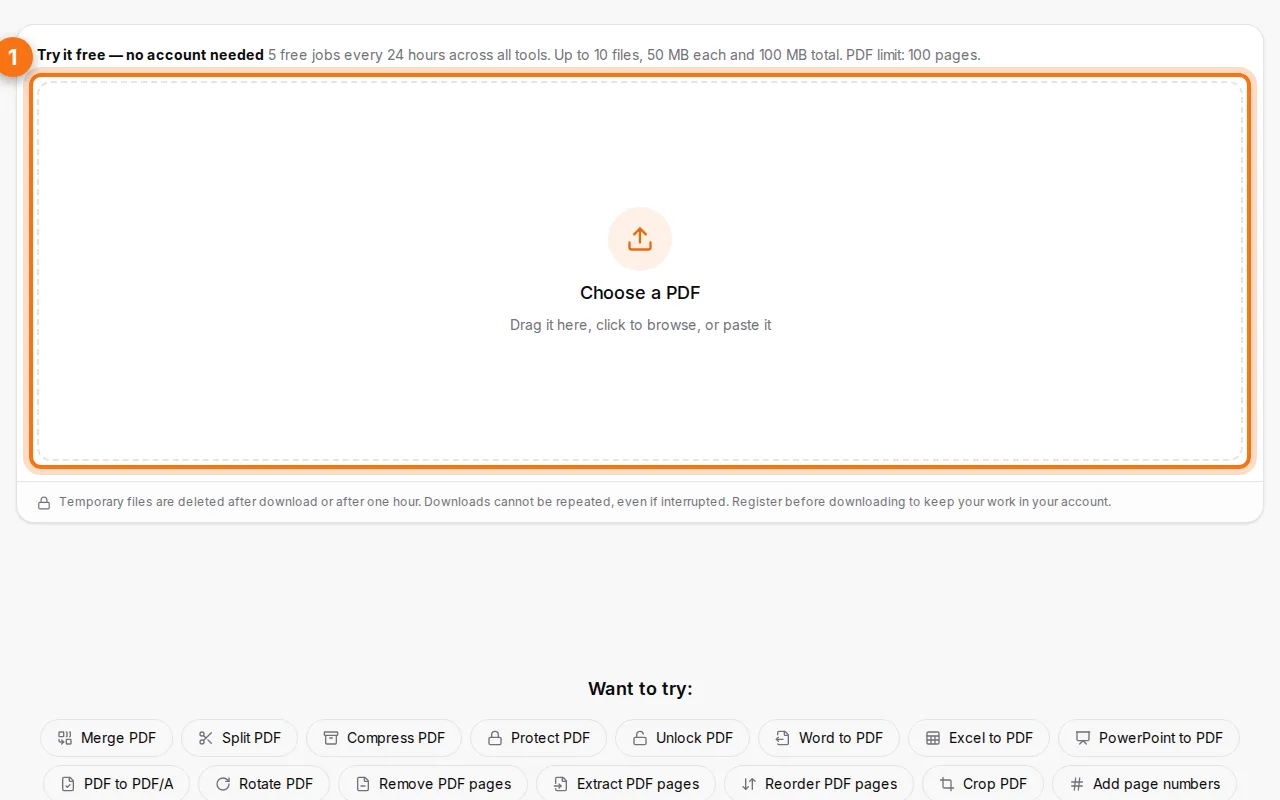
- Open the tool and choose your PDF (or drag it onto the page). Files up to the free limit are accepted, and several people use it every day without an account.
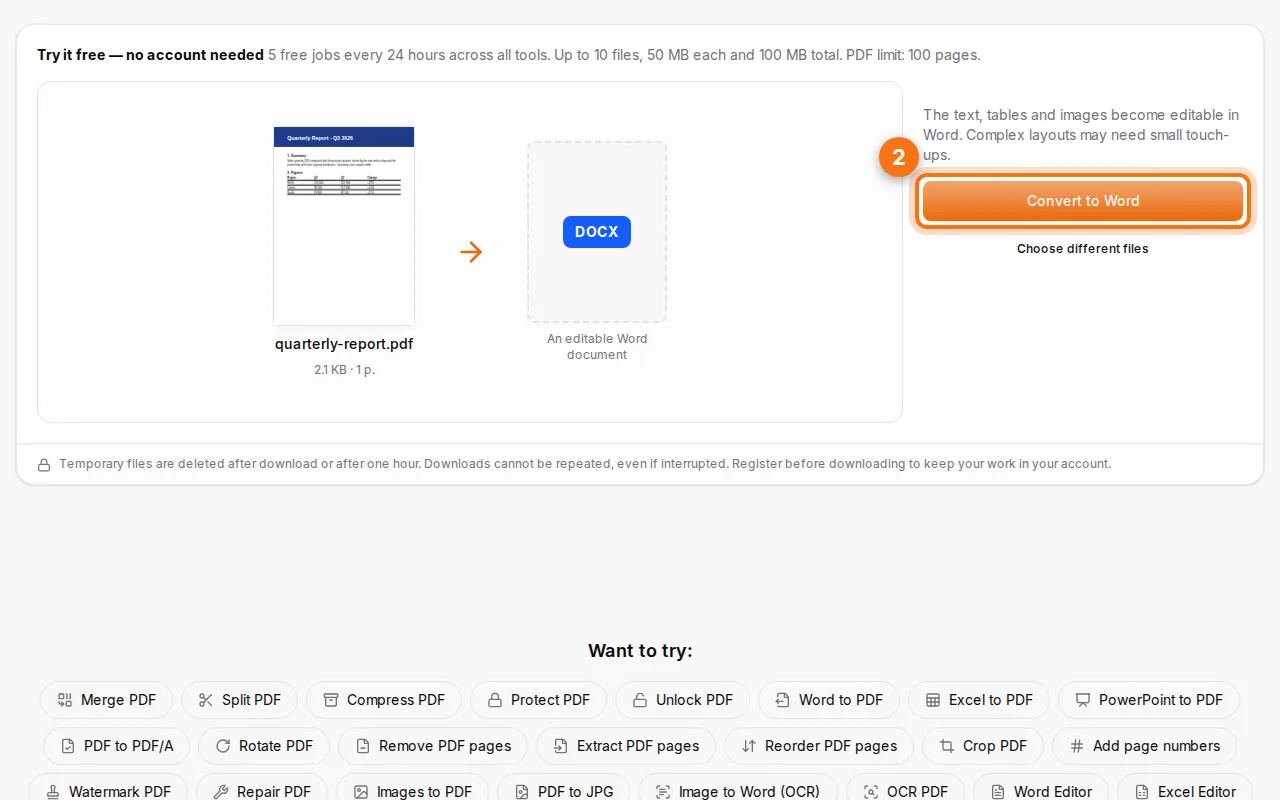
- Start the conversion. Click Convert to Word. Text, headings, tables and pictures are rebuilt as real Word content, not as pictures of the pages.
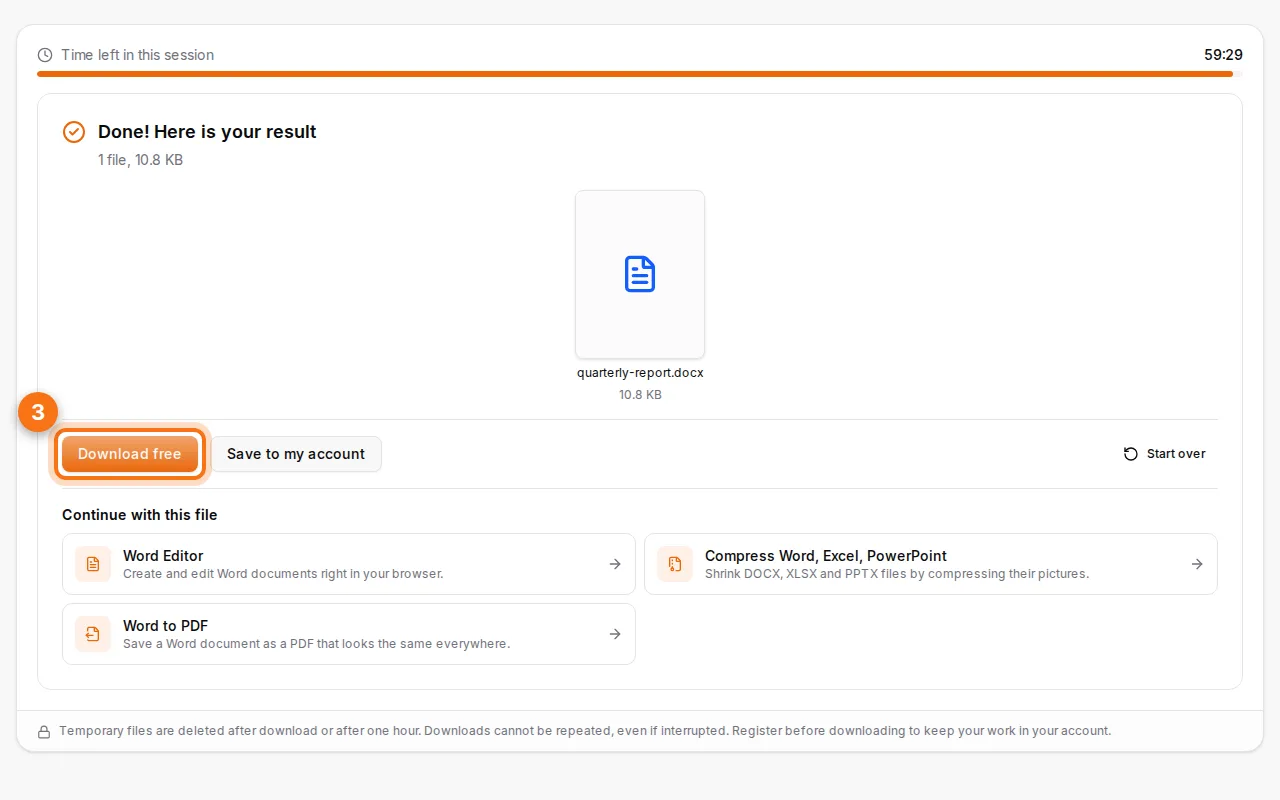
- Download the .docx. Open it in Microsoft Word, LibreOffice, Google Docs or the Fildok Word editor, and edit it like any document.
Getting the best conversion
- Text PDFs convert best. PDFs exported from Word, Excel or a website contain real text, so the result is very close to the original.
- Complex layouts may shift a little. Multi-column magazines, text on top of pictures and unusual fonts can move slightly. A quick check of each page is enough to fix it.
- Fonts: if the PDF used a font you don't have, Word shows a similar one. Install the font or pick another for the whole document.
- Tables come back as Word tables, so you can add rows and change widths.
What if the PDF is a scan?
A scanned PDF is a set of photos of pages: there's no text inside to convert. You have two options:
- Make it searchable first with OCR PDF, which recognises the text in English, French and Arabic, then convert the result to Word.
- Or use Image to Word (OCR) directly on photos or scans of pages.
You can tell a scan quickly: if you can't select a word in the PDF, it's a picture.
Why convert a PDF to Word?
- Update an old document when you only have the PDF.
- Reuse text and tables in a report, a quote or a CV.
- Fix a mistake in a contract or letter before sending it again.
- Translate the document in your usual tools.
When you're done, turn it back into a PDF with Word to PDF, or shrink the file with Compress Office.
Is it safe?
Files travel over an encrypted connection, are processed on our servers and deleted after an hour. They are never shared or used for anything else. For confidential documents, a free account lets you keep conversions in your private space, and delete them whenever you want.
FAQ
Is PDF to Word really free?
Yes. Guests get several free conversions every day without an account, and a free account adds more room and your own file space.
Does it keep the formatting?
It keeps headings, paragraphs, lists, tables and images as editable Word content. Very complex layouts can need small touch-ups.
Can I convert a password-protected PDF?
Unlock it first with Unlock PDF if you know the password, then convert it.
Does it work on a phone?
Yes. The tool works in any recent mobile browser, and the Word file opens in the Word, Google Docs or Fildok apps.
Can I edit the result online?
Yes. Open it in the Fildok Word editor, which works in the browser in English, French and Arabic.