How to Convert a Word Document to PDF for Free
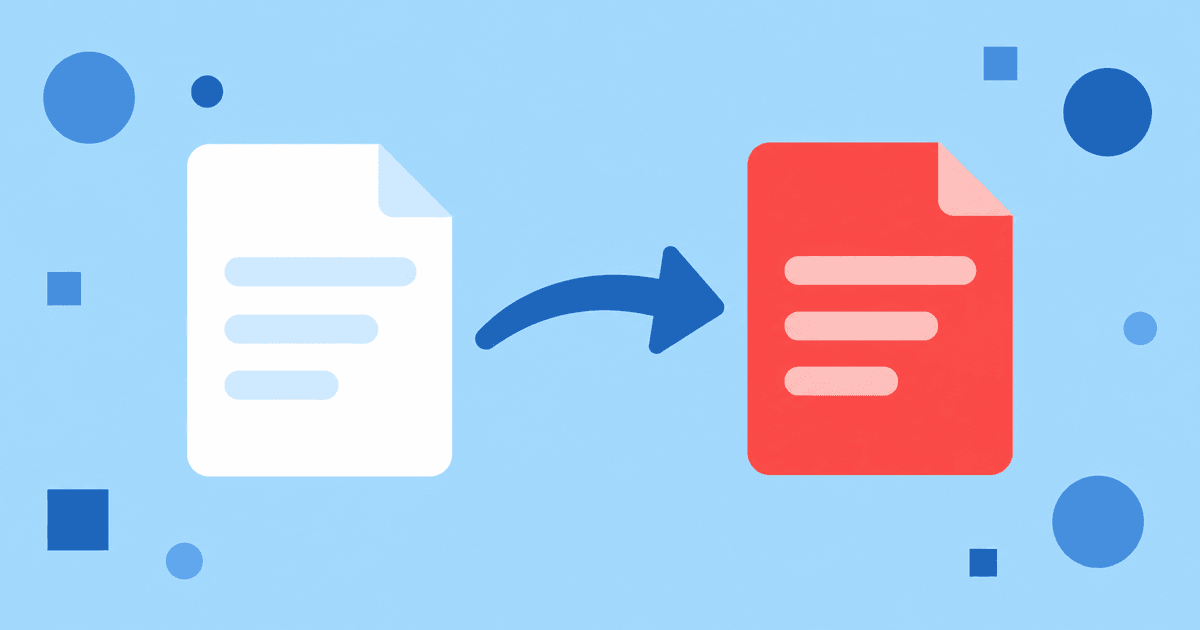
To convert a Word document to PDF for free, upload the DOCX to Fildok, double-click it to open the editor, then use File → Download as… → PDF. The export keeps your fonts, layout, images and formatting, and downloads directly to your device — no separate converter, no email attachment round-trip, no watermark.
The same File menu also goes the other way, and handles ODT, TXT and a few other formats. Here's the full picture.
How do I convert Word to PDF?
- Sign in or create a free account.
- Upload the
.docx(or.doc,.odt) file, up to 50 MB. - Double-click it to open it in the editor.
- Open File → Download as….
- Choose PDF.
The file downloads straight to your device as a PDF. Your original DOCX in Fildok is untouched, so you can keep editing it and export again whenever you need an updated PDF.
Does the formatting stay the same?
Yes — headings, styles, page breaks, tables, images and tracked-change marks (if accepted) carry over, because the export renders the document exactly as the editor displays it, not through a lossy intermediate format.
What if I need to go from PDF back to Word?
If you have a PDF that was originally a Word document and need it editable again, the cleanest path depends on how it was made:
- If you still have the original DOCX, just edit that — don't round-trip through PDF.
- If the PDF was generated by something else (a scanner, another app) and has no editable source, use OCR to turn it into an editable Word document. OCR works in English, French and Arabic.
- For small text fixes only, it's often faster to edit the PDF directly with a text box rather than reconstructing the whole document.
Other formats the File menu exports to
Beyond PDF, File → Download as… on a Word document also offers ODT (OpenDocument, for LibreOffice/OpenOffice) and TXT (plain text, formatting stripped). The same pattern works in the Excel and PowerPoint editors, exporting to their own equivalents (XLSX→CSV/ODS/PDF, PPTX→PDF/ODP).
Frequently asked questions
Will the PDF have a watermark or a "converted with" note?
No. The export is a plain PDF of your document, nothing added.
Can I convert several documents at once?
Each conversion is done from within that document's own editor session, one file at a time. For a batch of files, open and export each in turn — it takes a few seconds per file.
Is there a size limit?
Uploads are capped at 50 MB per file, and saved files count toward your account's storage (100–250 MB on the free plan).
Do I need an account?
Yes, a free one — exporting happens through the editor, so you need somewhere to upload the file first. No credit card required.
Try it
Create a free account, upload a Word document and export it as a PDF from the File menu. For everyday editing without the round-trip, see how to edit Word, Excel and PowerPoint online.